Docker Images
Great! So you have now looked at docker container run, played with Docker containers, and ran your first web application inside a container. In this section, you will learn how Docker images are built and how layers work.
Tasks:
Task 1: Docker Images
In this section, we dive into Docker images — how they are structured, how layers work, and how images are shared and managed on a Docker host.
The Docker documentation gives a great explanation of how image layers work, but here are the highlights.
- Images are comprised of layers
- These layers are added by each line in a Dockerfile
- Images on the same host or registry will share layers if possible
- When a container is started it gets a unique writable layer of its own to capture changes that occur while it’s running
- Layers exist on the host file system in some form (usually a directory, but not always) and are managed by a storage driver to present a logical filesystem in the running container.
- When a container is removed the unique writable layer (and everything in it) is removed as well
A Docker image is built up from a series of layers. Each layer represents an instruction in the image’s Dockerfile. Each layer except the very last one is read-only. Consider the following Dockerfile:
    FROM debian:bookworm-slim
    COPY . /app
    RUN make /app
    CMD python /app/app.py
This Dockerfile contains four commands, each of which creates a layer. The FROM statement starts out by creating a layer from the debian:bookworm-slim image. The COPY command adds some files from your Docker client’s current directory. The RUN command builds your application using the make command. Finally, the last layer specifies what command to run within the container.
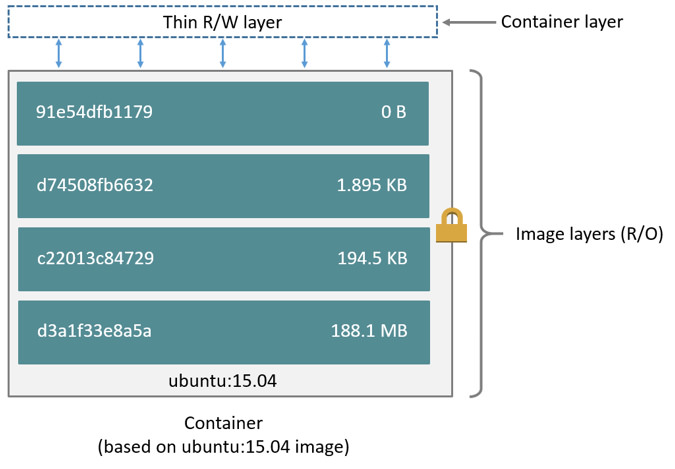
Multiple containers can use the same image. Each container has its own writable layer where all changes are stored, but they share access to the same underlying image layers and maintain their own data state. The diagram below shows multiple containers sharing the same Debian image.
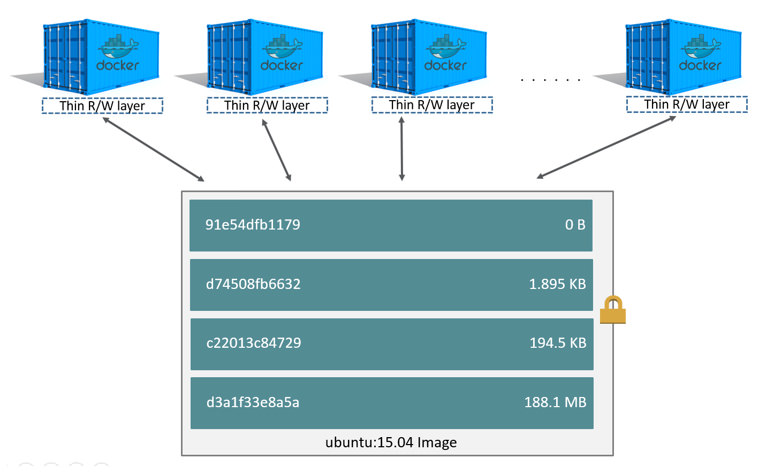
The following exercises will help to illustrate those concepts in practice.
Let’s start by looking at layers and how files written to a container are managed by something called copy on write.
Docker images are the basis of containers. In the previous example, you pulled the dockersamples/static-site image from the registry and asked the Docker client to run a container based on that image. To see the list of images that are available locally on your system, run the docker image ls command.
$ docker image ls
REPOSITORY                  TAG                 IMAGE ID            CREATED             SIZE
dockersamples/static-site   latest              92a386b6e686        2 hours ago        190.5 MB
nginx                       latest              af4b3d7d5401        3 hours ago        190.5 MB
python                      3.12                1c32174fd534        14 hours ago        676.8 MB
postgres                    17                  88d845ac7a88        14 hours ago        432.5 MB
traefik                     latest              27b4e0c6b2fd        4 days ago          160.7 MB
node                        22                  42426a5cba5f        6 days ago          633.7 MB
redis                       latest              4f5f397d4b7c        7 days ago          177.5 MB
mongo                       latest              467eb21035a8        7 days ago          309.7 MB
alpine                      latest              70c557e50ed6        8 days ago          7.8 MB
debian                      bookworm-slim       21f6ce84e43c        8 days ago          74.8 MB
Above is a list of images that we’ve pulled from the Docker registry and images I created myself (we’ll shortly see how). You will have a different list of images on your machine. The TAG refers to a particular snapshot of the image and the ID is the corresponding unique identifier or hash for that image.
For simplicity, you can think of an image functions similarly to a git repository - images can be committed with changes and have multiple versions. When you do not provide a specific version number, the client defaults to latest.
-
Pull a specific version of
debianimage as follows:$ docker image pull debian:bullseye-slimNote If you do not specify the version number of the image then, as mentioned, the Docker client will default to a version named
latest. -
So for example, the
docker image pullcommand given below will always pull thelatesttag of an image. The example below pullsdebian:latestby default.$ docker image pull debian
To get a new Docker image you can either get it from a registry (such as the Docker Hub) or create your own. There are hundreds of thousands of images available on Docker Hub. You can also search for images directly from the command line using docker search.
An important distinction with regard to images is between base images and child images.
-
Base images are images that have no parent images, usually images with an OS like ubuntu, alpine or debian.
-
Child images are images that build on base images and add additional functionality.
Another key concept is the idea of official images and user images. (Both of which can be base images or child images.)
-
Official images are Docker-sanctioned images. Docker, Inc. sponsors a dedicated team that is responsible for reviewing and publishing all Official Repositories content. This team works in collaboration with upstream software maintainers, security experts, and the broader Docker community. These are not prefixed by an organization or user name. In the list of images above, the
python,node,alpine,debianandnginximages are official (base) images. To find out more about them, check out the Official Images Documentation. -
User images are images created and shared by users like you. They build on base images and add additional functionality. Typically these are formatted as
user/image-name. Theuservalue in the image name is your Docker Hub user or organization name.
Task 2: Layers and Copy on Write
-
Pull the Debian Bookworm Slim image
$ docker image pull debian:bookworm-slim bookworm-slim: Pulling from library/debian 952b15bbc7fb: Pull complete Digest: sha256:ac58ff7fe25edc58bdf0067ca99df00014dbd032e2246d30a722fa348fd799a5 Status: Downloaded newer image for debian:bookworm-slim docker.io/library/debian:bookworm-slim -
Pull a PostgreSQL image
$ docker image pull postgres:17
17: Pulling from library/postgres
952b15bbc7fb: Already exists
c3beef926275: Pull complete
dd40ffbb6cb3: Pull complete
31691bc52e3b: Pull complete
0b4de91620aa: Pull complete
1ecbfd4a00bd: Pull complete
91656c5c74a8: Pull complete
fbc99aa6f426: Pull complete
Digest: sha256:b85481f8f2a65c10dec198e562a751676e926da83018e5590d00be86e5c9f635
Status: Downloaded newer image for postgres:17
docker.io/library/postgres:17
What do you notice about the output from the Docker pull request for PostgreSQL?
The first layer pulled says:
952b15bbc7fb: Already existsNotice that the layer id (
952b15bbc7fb) is the same for the first layer of the PostgreSQL image and the only layer in the Debian Bookworm Slim image. And because we already had pulled that layer when we pulled the Debian image, we didn’t have to pull it again.So, what does that tell us about the PostgreSQL image? Since each layer is created by a line in the image’s Dockerfile, we know that the PostgreSQL image is based on the Debian Bookworm Slim base image. We can confirm this by looking at the Dockerfile on GitHub.
The first line in the Dockerfile is:
FROM debian:bookworm-slimThis will import that layer into the PostgreSQL image.So layers are created by the Dockerfile and are shared between images. When you start a container, a writable layer is added to the base image.
Next you will create a file in our container, and see how that’s represented on the host file system.
Note: Not all database images share the same base. For instance, MariaDB is based on
ubuntu:noble, not Debian. If you pulledmariadb:11afterdebian:bookworm-slim, you would not see shared layers, because they use different base images. Always check an image’s Dockerfile to understand its lineage. -
Start a Debian container, shell into it.
$ docker container run --tty --interactive --name mydebian debian:bookworm-slim bash root@e09203d84deb:/# -
Create a file and then list out the directory to make sure it’s there:
root@e09203d84deb:/# touch test-file
root@e09203d84deb:/# ls
bin  boot  dev	etc  home  lib	lib64  media  mnt  opt	proc  root  run  sbin  srv  sys  test-file  tmp  usr  var
We can see
test-fileexists in the root of the container’s file system.What has happened is that when a new file was written to the disk, the Docker storage driver placed that file in its own layer. This is called copy on write - as soon as a change is detected the change is copied into the writable layer. That layer is represented by a directory on the host file system. All of this is managed by the Docker storage driver.
-
Exit the container but leave it running by pressing
ctrl-pand thenctrl-q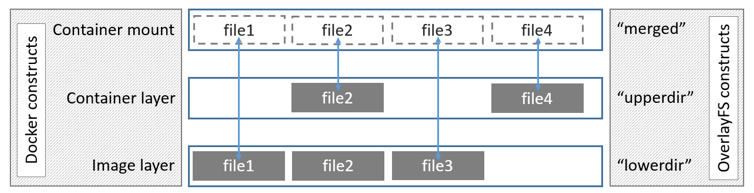
Our Docker host utilizes OverlayFS with the overlay2 storage driver.
OverlayFS layers two directories on a single Linux host and presents them as a single directory. These directories are called layers and the unification process is referred to as a union mount. OverlayFS refers to the lower directory as lowerdir and the upper directory an upperdir. “Upper” and “Lower” refer to when the layer was added to the image. In our example the writable layer is the most “upper” layer. The unified view is exposed through its own directory called merged.
-
Stop the container
$ docker container stop mydebian -
Ensure that your container still exists
$ docker container ls --all CONTAINER ID IMAGE COMMAND CREATED STATUS PORTS NAMES 674d7abf10c6 debian:bookworm-slim "bash" 36 minutes ago Exited (0) 2 minutes ago mydebian -
Start the Debian container again
$ docker container start mydebian -
Attach to the container, hit
entertwice after completing the command$ docker container attach mydebianBecause the container still exists, the files are still available on your file system. At this point the file we created previously still exists.
However, if we remove the container, the directories on the host file system will be removed, and your changes will be gone.
-
Remove the container and list the directory contents
$ docker container rm mydebian
mydebian
The files that were created are now gone and the container now reverts back to the base image which it was created from if we start it again.
Key takeaway: Data written to a container’s writable layer is tied to that container’s lifecycle. Once the container is removed, the data is gone. To persist data beyond a container’s lifetime, you need Docker Volumes — which we’ll cover after the next chapter.
Next Steps
For the next step in the tutorial, head over to Multi-Stage Builds